Colour calibration
Meat-colour calibration can be skipped. When the program opens it may show a reminder that calibration has not been done.
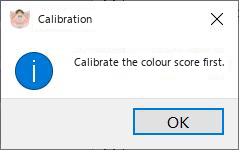
Fig. 20. Reminder to calibrate the meat-colour score.
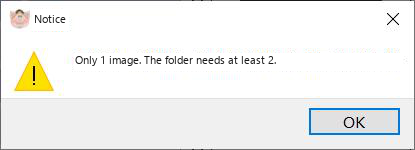 Start a calibration
In the animal list, select a folder that contains at least two images. A folder with a single image is rejected (Fig. 21). Then use Menu Meat-colour calibration. MMQ calculates L*, a* and b* and places them in the calibration window. |
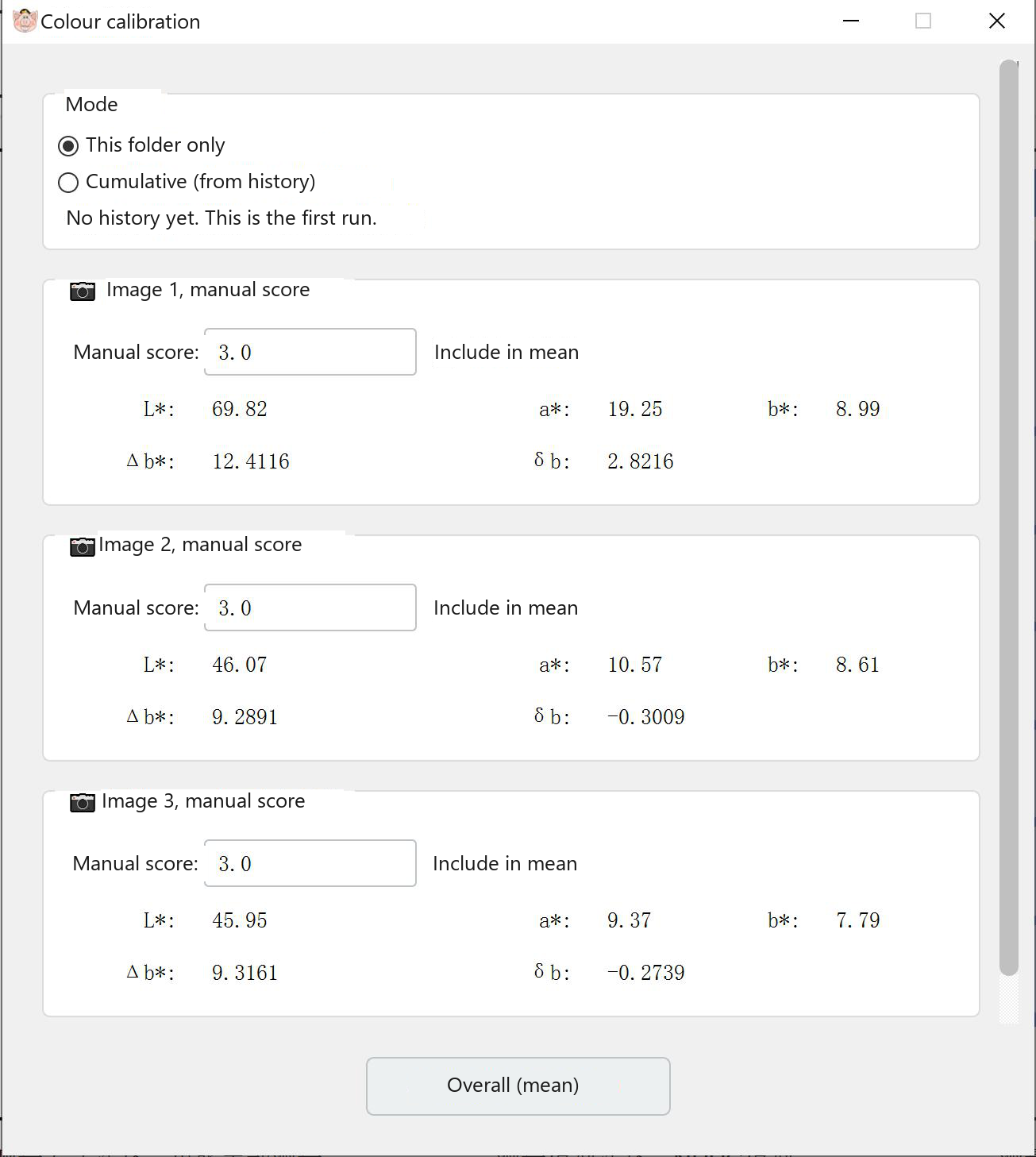
Fig. 22. Calibration window with L*, a* and b* filled in.
Type a manual colour score for each image. You choose whether that score is included in the average. Click Overall calibration. The window then shows the mean of the images that received a valid score.
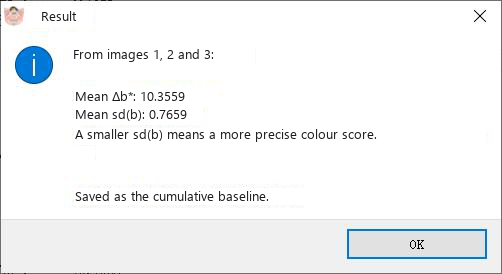
Fig. 23. Means after overall calibration. A smaller standard deviation of b (δb) means a more precise colour score.
The standard deviation of b is the figure the manual uses to judge how precise the colour-score calculation is. A smaller δb means a more precise colour model.
Cumulative calibration
You can calibrate one folder, or you can accumulate several folders.
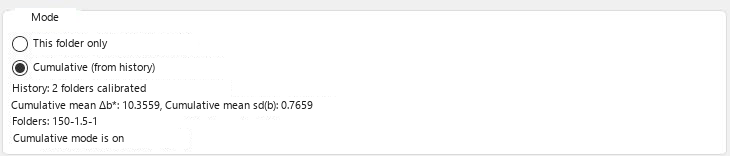
Fig. 24. Choose single-folder calibration or cumulative calibration.
In cumulative mode the program keeps the result of the first folder. The next folder is calibrated onward from that result, and the window shows the accumulated values.
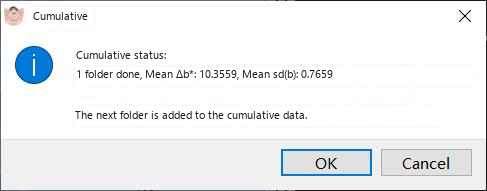
Fig. 25. Cumulative calibration carried from the previous folder.
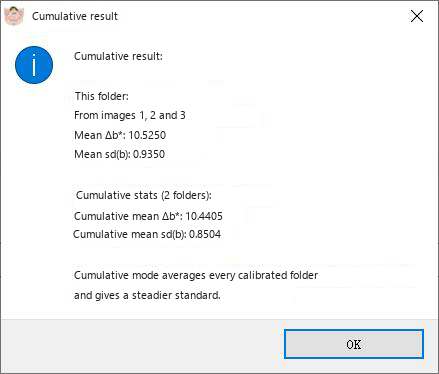
Fig. 26. Result after more than one folder has been accumulated.
When calibration is finished, or if you skip it, go on to Measurement.