Export
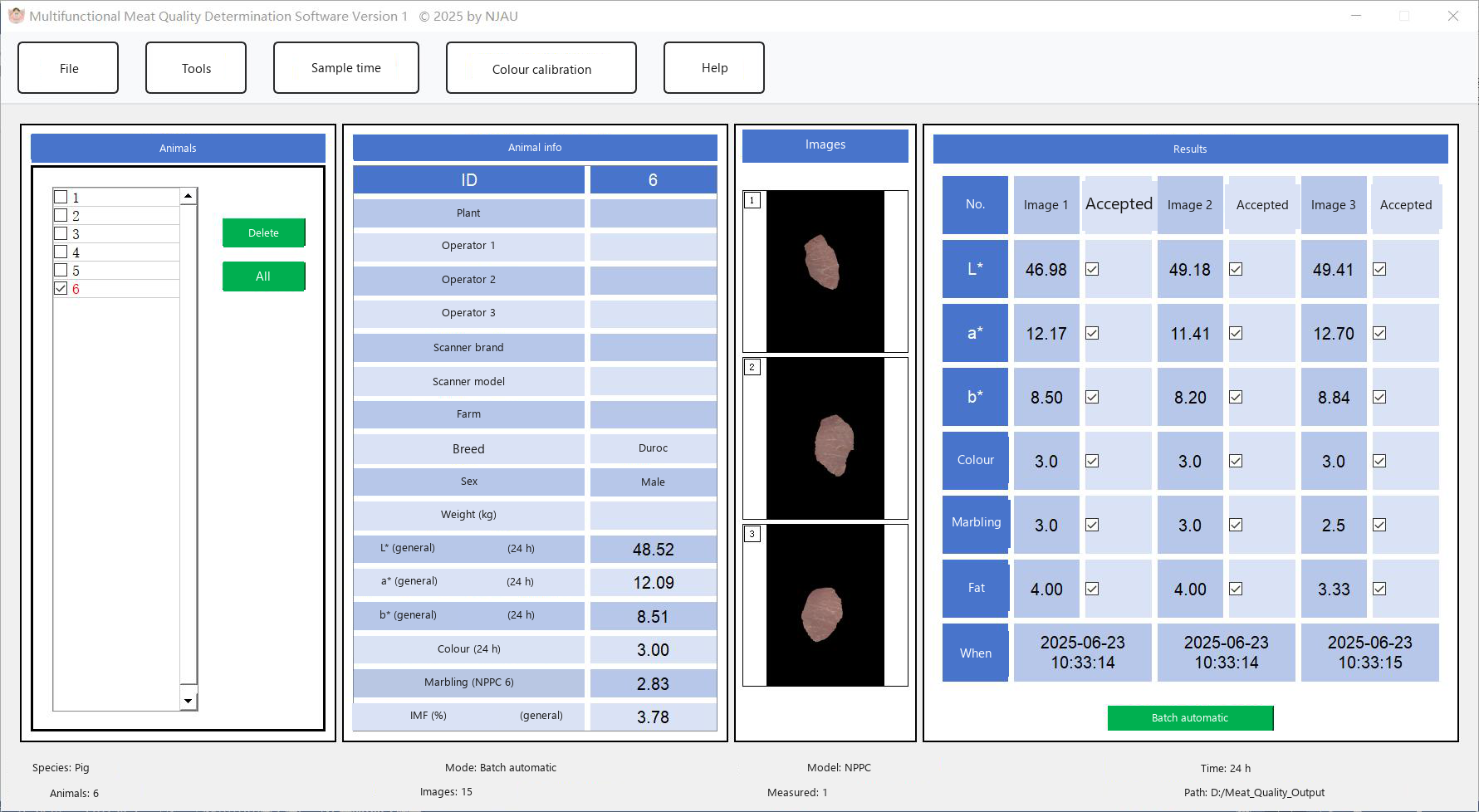
Export writes only folders that have already been measured. In the animal list those folders are shown in red. Other folders are omitted.
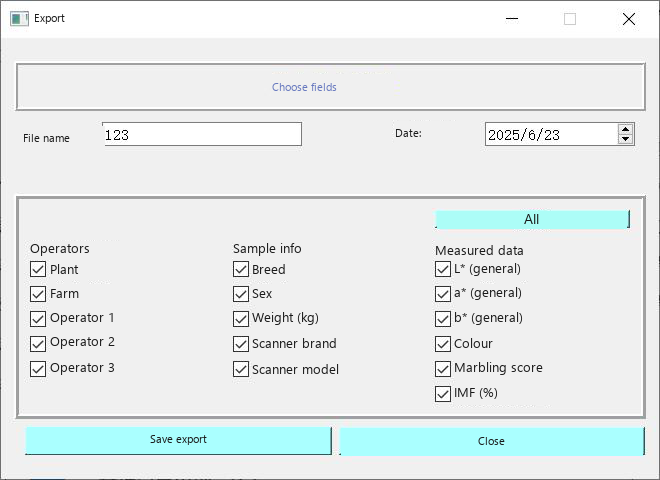 Use Menu File > Data export. The export window lists finished animals. Clear the tick in front of an animal if that animal should be left out of the file. Click Save export.
|
The file is written to the folder chosen when the information template was saved. The default folder is D:\Meat_Quality_Output. If that folder does not exist, MMQ creates it on drive D:.
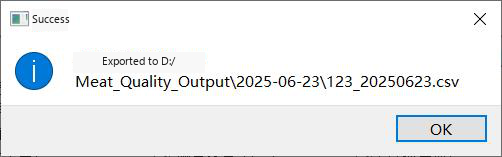
Fig. 37. Confirmation after the CSV file has been written.
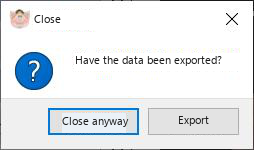 If you close the program without exporting, or you hit the close button by mistake, MMQ asks you to export before it quits (Fig. 38).
|

Fig. 39. Default export location on drive D:.
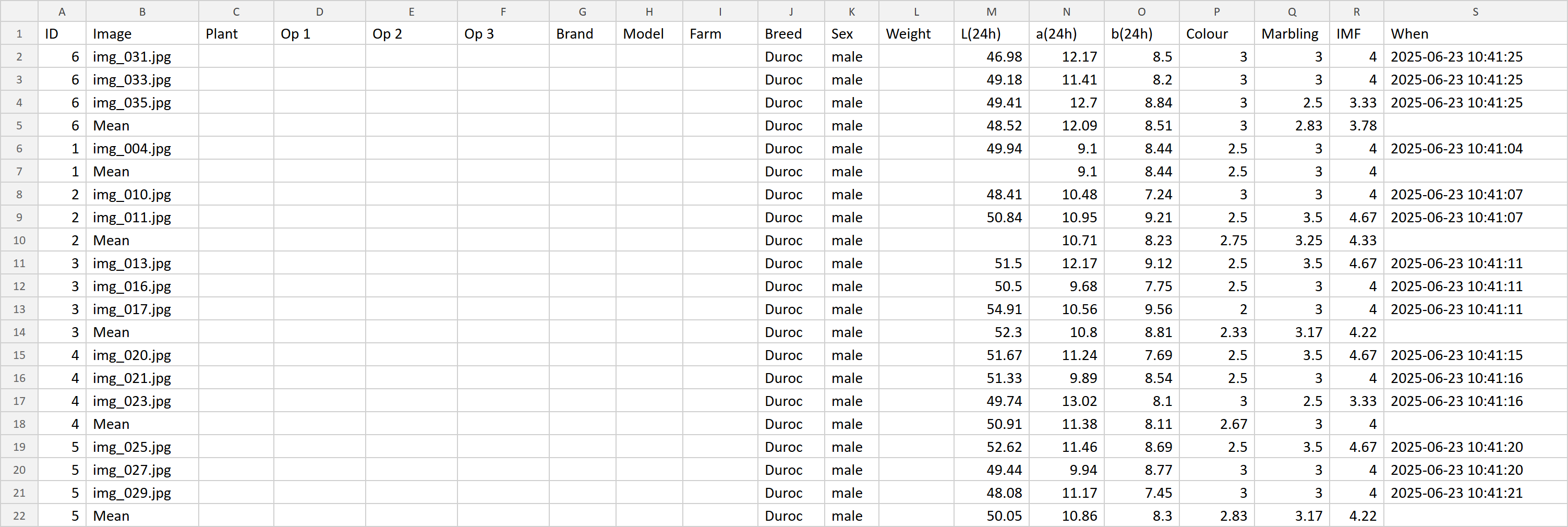
Fig. 40. Opened CSV file.
Columns
- Column 1 is the animal ID typed in the information table (the ear-tag column in the manual).
- Column 2 is the image number.
- Further columns hold the image record and the measured values.
- A remark distinguishes a 45min sample from a 24h sample.
- The colour-score column notes which scoring model was used.
- The last row is the average of the accepted images.
- An image that was not accepted is marked and is not part of that average.
Menu Help > User guide opens the packaged guide, the same document as the PDF manual shipped with the program.